Important: While mcSkinningBee is open and its hotkeys are enabled, configured shortcuts take priority over matching Maya shortcuts.
On a first installation, mcSkinningBee hotkeys are enabled by default. This gives you quick access to weight-editing, selection, and animation tools without leaving the viewport, but it also means that a key already used by Maya may behave differently while mcSkinningBee is running.
The override is temporary. mcSkinningBee does not permanently replace Maya's hotkey configuration. Closing the tool or disabling its hotkeys returns the matching keys to Maya.
Review your shortcuts
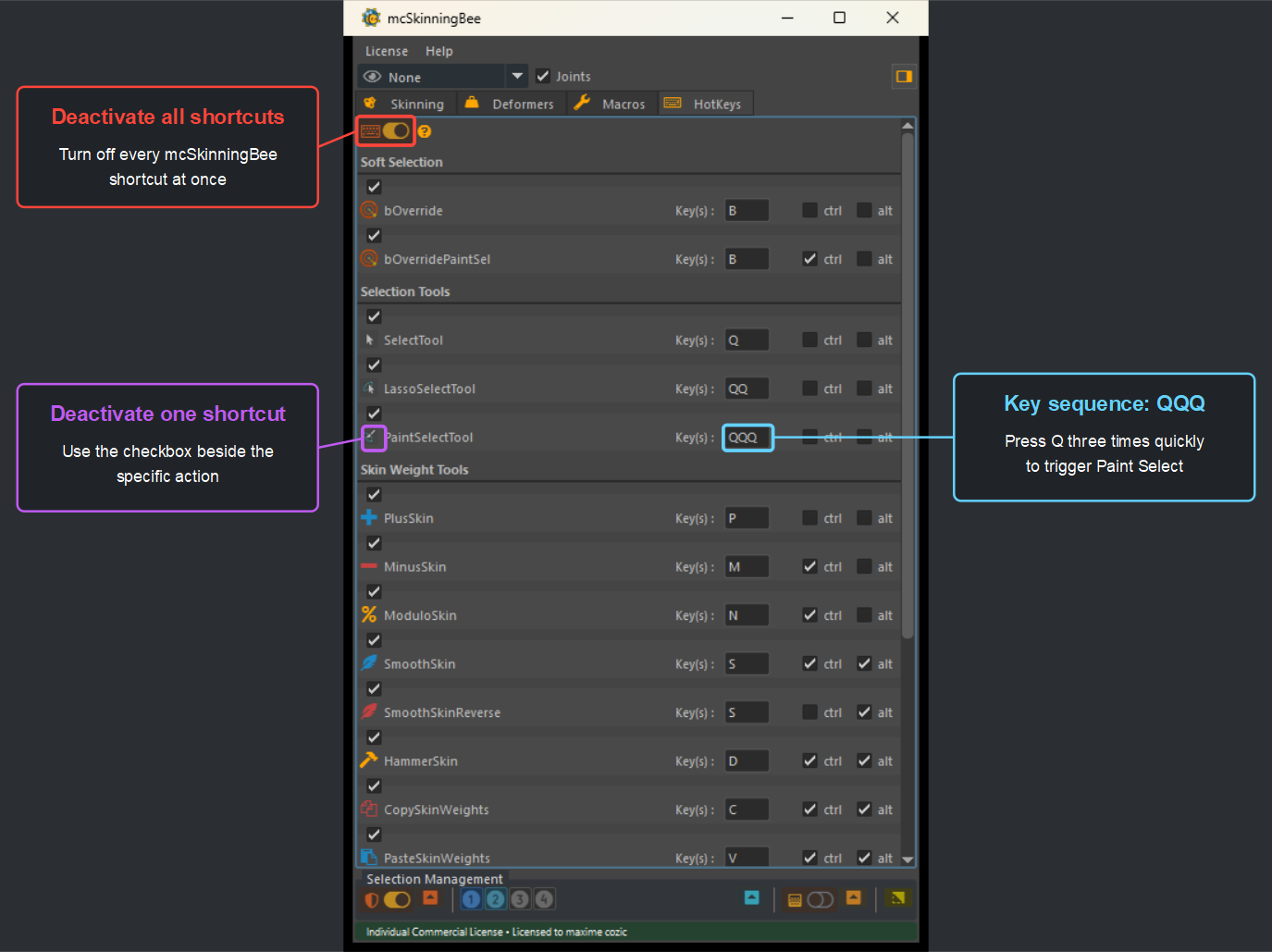
Open the HotKeys tab to review or change the current assignments. From there, you can:
- Disable all mcSkinningBee shortcuts with the switch at the top.
- Disable a single shortcut with the checkbox beside its action.
- Change its key sequence and optional
CtrlorAltmodifier.
For now, mcSkinningBee shortcuts support character keys only. Special keys such as function keys, arrow keys, Space, and Enter cannot be assigned. Character keys can still be combined with the available Ctrl and Alt modifiers.
Your global setting and individual shortcut choices are saved and restored the next time you open mcSkinningBee.
If a familiar Maya shortcut stops responding as expected, check the HotKeys tab first. You can disable the conflicting mcSkinningBee shortcut or assign it to a different key.