
In mcSkinningBee Open License → Activate License… to install your purchased license and activate commercial use. Choose online activation when Maya can reach the activation service, or use the offline workflow to exchange an activation request through a browser on a connected computer.
Select the purchase license
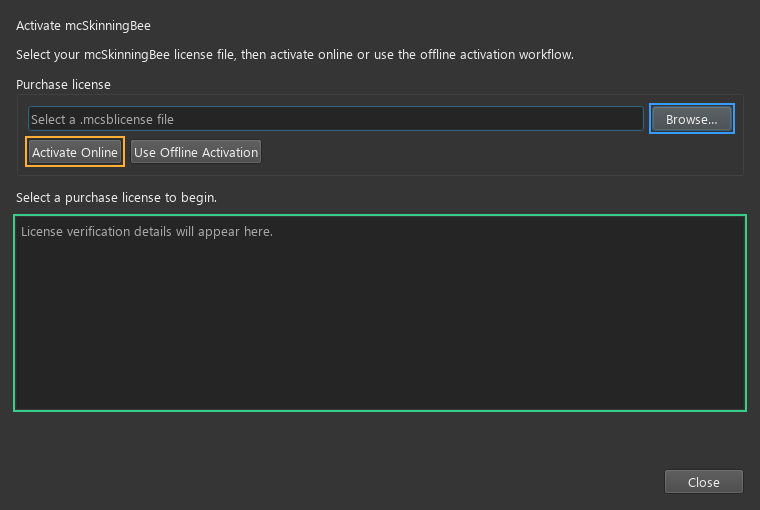
This is an isolated preview of the actual Qt dialog before a license is selected; no activation was performed.
- Click Browse…, outlined in blue.
- Select the
.mcsblicensefile obtained with your purchase. - The tool validates the file and copies an accepted file into its local license-data folder. The path field then shows the installed copy.
If the file is rejected, obtain a valid purchase license before continuing. Selecting a file does not by itself complete activation. If a purchase file is already installed, the dialog attempts to load it when opened.
Activate online
- With the purchased license installed, click Activate Online, outlined in orange.
- Wait while the tool generates a request and contacts the activation service. A progress indicator appears and the button is temporarily disabled.
- An accepted response installs the activation certificate. The tool then refreshes its license verification report.
- Read the report in the area outlined in green, then open License → License Information to confirm Commercial License Active.
The report contains Message, Remediation, and Issues. A green report background means no remediation was reported; a red background indicates that action is required. Read the text rather than relying only on the color. A “certificate received” status alone does not establish that the license is accepted.
If the server cannot be reached or returns an unusable response, the dialog exposes its offline activation controls. You can also choose Use Offline Activation directly.
Activate offline
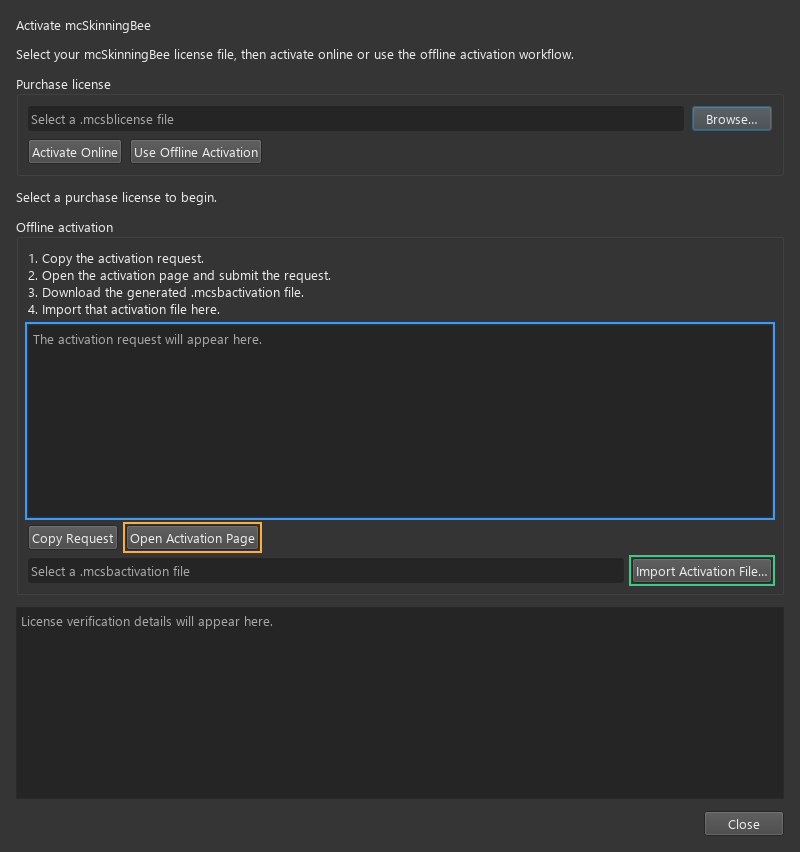
UI preview with the offline section expanded. The request is empty because no real license request was generated. The activation address displayed in the running application is omitted from this preview.
- Install the purchased
.mcsblicensefile as described above. - Click Use Offline Activation to generate the activation request and show the offline section.
- Check that the request field, outlined in blue, contains a request. Click Copy Request.
- Click Open Activation Page, outlined in orange, and submit the request using the website's instructions. If the Maya computer is offline, transfer the request to a connected computer and open the activation address shown in the dialog there.
- Download the generated
.mcsbactivationfile and transfer it back to the computer where the request was created. - Click Import Activation File…, outlined in green, and select the downloaded file.
- The tool validates the certificate, installs an accepted file, and refreshes the report. Confirm Commercial License Active in License Information.
Use the certificate returned for that activation request. The offline workflow still requires access to the activation website from a connected computer; it is not an activation process performed entirely without a service connection.
If activation does not complete
| Symptom | What to check |
|---|---|
| License file not valid | Select the original purchased .mcsblicense file rather than an activation certificate. Obtain a replacement through support if the original is rejected. |
| Activation Request Failed, or an empty offline request | Confirm that a valid purchase file was installed. Read the error before attempting the website exchange. |
| Network error or failed server response | Check connectivity and access to the activation service. Use the offline workflow when Maya cannot reach it directly. |
| Activation file not valid | Import a .mcsbactivation certificate issued for the request from this computer. Read the verification details if it is rejected. |
| License Import Failed | Read the file-copy error and check that the Maya user-data location is writable. |
| Certificate installed but commercial status is inactive | Open License Information, click Refresh, and follow the reported remediation. A saved certificate may be present without being accepted. |
For unresolved errors, send the message and remediation text to support@bearofspades.com. Avoid posting your full license files, activation certificates, or activation request publicly.
See License status and deactivation for checking the installed state and removing local authorization.