
Use License → License Information to inspect the installed purchase document, activation certificate, and effective verification status. Use License → Deactivate License… when you want to remove the local activation or both installed license files.
Check the effective license status
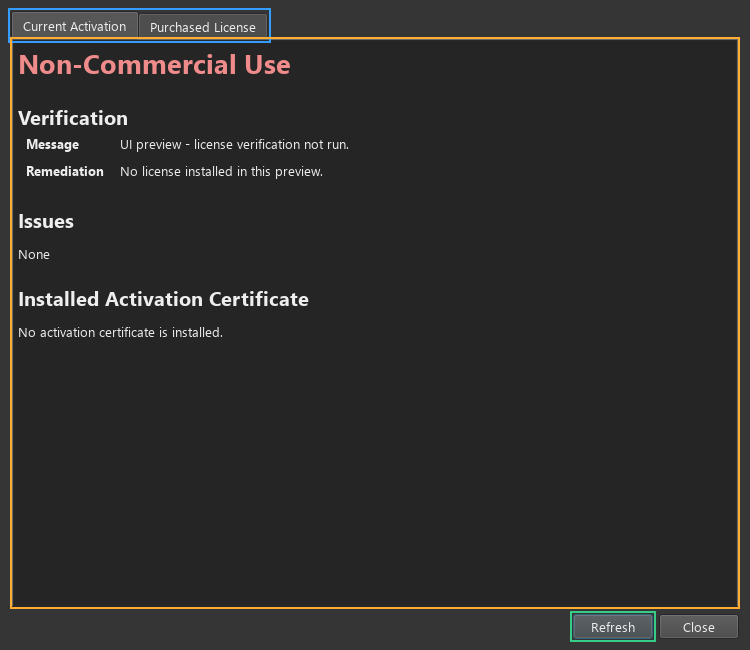
This screenshot is an isolated UI preview with no installed license. Its verification message is preview text, not a report from a customer's license.
The tabs outlined in blue separate two kinds of information:
| Tab | What it shows |
|---|---|
| Current Activation | Effective commercial status, verification messages, remediation, issues, and the installed activation certificate when present. |
| Purchased License | The installed purchase-license document and its validation result. |
Read the current status and verification details in the area outlined in orange. Click Refresh, outlined in green, to reload the installed documents and query the current report.
| Status or detail | Meaning / next step |
|---|---|
| Commercial License Active | Verification reports no required remediation. Check the document details for the applicable license assignment and validity period. |
| Non-Commercial Use | Commercial authorization is not currently confirmed. Read the verification details to distinguish a missing license from another activation or validation problem. |
| No purchase license installed | Install your purchased .mcsblicense file through Activate License…, or continue only within the permitted non-commercial terms. |
| No activation certificate installed | Complete online or offline activation if commercial use is required. |
| Certificate installed but not currently accepted | Follow the report's remediation; the presence of the file alone does not establish commercial authorization. |
| Verification failed or a document could not be read | Resolve the reported error and refresh before relying on commercial status. |
Date/time values recognized by the information dialog are displayed in UTC. Review expiration dates when checking a renewed license. Renewal or purchase and local activation are separate operations; after installing updated authorization, refresh the information dialog to confirm the result.
Deactivate or remove local files
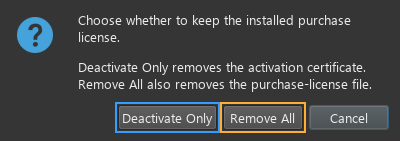
Open License → Deactivate License…. The confirmation dialog provides two removal choices and Cancel.
| Choice | Result |
|---|---|
| Deactivate Only, outlined in blue | Removes the local activation certificate while keeping the installed purchased license file. |
| Remove All, outlined in orange | Removes both the local activation certificate and the installed purchased license file. |
| Cancel | Closes the confirmation without removing files. |
After removal, the tool refreshes Maya's license state and displays a summary. If removal is incomplete, the message identifies the errors. Reopen License Information and refresh it to check the resulting state.
These actions remove the tool's installed local copies. They do not cancel a purchase, change its expiration date, delete your original downloaded backup, or remove scene and skinning data. Keep your purchased license file if you plan to reactivate later.
Local deactivation does not send a seat-release request to the licensing service. Do not treat it as confirmation that a server-side activation allocation or floating seat has been released. Contact support if your licensing arrangement requires a reset or seat-management operation.
Reactivate or change computers
- After Deactivate Only, open Activate License… and activate again using the retained purchase file.
- After Remove All, browse to your original purchased
.mcsblicensefile before activating again. - On another computer, install mcSkinningBee, select the purchased file, and complete activation there. Generate a new request on that computer rather than assuming an old activation certificate can be reused.
A nominative license remains assigned to its named user when used on different computers; it does not become transferable to another person. Studio and floating arrangements follow the conditions supplied with the purchase. See Purchase and license types.
Support information
For licensing assistance, contact support@bearofspades.com with the affected workflow, Maya and mcSkinningBee versions, and the Message, Remediation, and relevant Issues text. State whether you are activating online, importing an offline certificate, or changing computers. Share license documents only through a private support exchange when requested.