
The Selection Management toolbar remains available at the bottom of mcSkinningBee on every tab. It groups protected vertices, stored-selection slots, custom soft selection, and a command for promoting a soft selection to a full component selection.

Toolbar overview
From left to right, the toolbar contains:
- Protected Selection — the shield switch enables or disables protected-vertex (not selectable) enforcement. The adjacent orange arrow opens its settings flyout.
- Stored Selections — the numbered buttons provide quick selection slots. The adjacent blue arrow opens their settings flyout.
- Custom Soft Selection — the gradient switch enables or disables soft selection. The adjacent yellow arrow opens its settings flyout.
- Promote Soft Selection — the final selection icon converts the current soft selection into a full selection.
The switches change the active state immediately. The small upward-arrow buttons open temporary settings panels above the toolbar.
Protected Selection
Protected Selection prevents specified vertices from being selected while its shield switch is enabled. This is useful when repeated marquee, lasso, or soft selections must avoid sensitive areas of a mesh.
Open the orange-arrow flyout to manage protected vertices and global behavior.
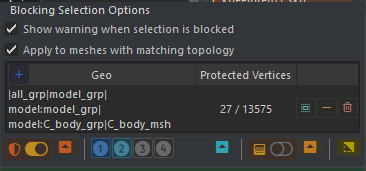
- Click the + button in the table header to add the currently selected vertices to their mesh's protected set.
- Show warning when selection is blocked reports when protected vertices have been excluded from a selection.
- Apply to meshes with matching topology applies the same protected vertex indices to other meshes with compatible topology.
- Each populated table row shows the mesh and its protected-vertex count, with actions for selecting, removing, or deleting protected data.
Use the shield switch in the toolbar to temporarily disable enforcement without deleting the protected sets.
Stored Selections
The numbered buttons store selections for quick reuse. Click an empty gray slot to save the current selection and its soft-selection settings. Click a colored slot to recall both the saved selection and its settings.

Open the blue-arrow flyout to manage all nine slots. Each row shows the slot number, geometry, and saved vertex count. The eye icon shows or hides that slot in the toolbar. The three buttons at the right recall the slot, replace it with the current selection, or clear it. Save Configuration exports the slots to a JSON file; Load Configuration imports a saved configuration.
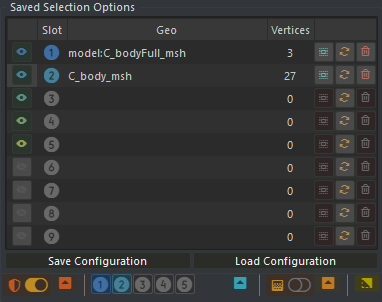
Right-click a slot button in the toolbar to use only part of its saved data or manage the slot. Actions that need saved data are disabled for an empty slot.
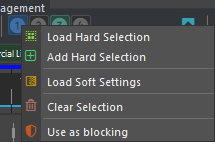
| Right-click action | Effect |
|---|---|
| Load Hard Selection | Replaces the current hard selection with the stored vertices. Leaves soft-selection settings unchanged. |
| Add Hard Selection | Adds the stored vertices to the current hard selection. Keeps other selected items and soft-selection settings. |
| Load Soft Settings | Restores only the saved Maya and mcSkinningBee soft-selection settings. Leaves the current selection unchanged. |
| Clear Selection | Empties this stored slot. It does not clear the current Maya selection. |
| Use as blocking | Uses the stored vertices as protected vertices for Protected Selection. |
Custom Soft Selection
The gradient switch enables soft selection. Its settings flyout can use either Maya's regular soft selection or mcSkinningBee's custom system.
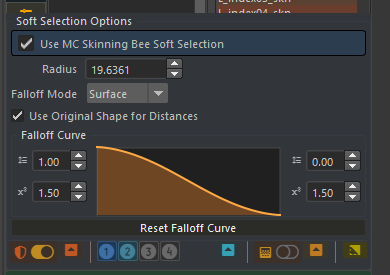
The flyout contains the following controls:
- Use MC Skinning Bee Soft Selection enables the custom calculation. Disable it to use Maya's regular soft-selection behavior.
- Radius defines the size of the soft-selection region.
- Falloff Mode controls how distances are measured: Volume measures through 3D space, while Surface follows the mesh surface.
- Use Original Shape for Distances calculates distances on the undeformed original mesh—usually the intermediate
ShapeOrig—instead of the currently deformed result. - Falloff Curve controls how selection strength changes from the hard-selected components to the edge of the radius. The value and power fields shape each end of the curve, and Reset Falloff Curve restores the default profile.
Why use the original shape?
Using ShapeOrig is currently the main reason to choose mcSkinningBee's custom soft selection. On a posed or heavily deformed mesh, nearby points in the visible result may be far apart on the original surface, or originally adjacent points may have moved apart. Enabling Use Original Shape for Distances calculates the falloff from the stable, undeformed geometry, so the selected region is not reshaped by the current pose.
This option is especially useful while skinning around folded joints or other areas where deformation brings unrelated parts of the mesh close together.
Promote Soft Selection

Click Promote Soft Selection to add the components affected by the current soft-selection falloff to the full selection. This is useful when you want to keep the region produced by a falloff and continue working with it as a regular component selection.