
The weight-editing toolbar runs down the left side of the Deformers tab. Its eight tools edit the active weight map on the selected components. The sections below follow the buttons from top to bottom. The animation buttons below them are covered in Animation tools.
Choose the weight map
- Select the geometry or components you want to work on in Maya.
- Check the Geometry field, then select a deformer in the deformer list.
- Select a weight map in the map list. For a blend shape, expand Targets Weights to choose an individual target map, or select Global Weights to edit the global map.
- Select the components to edit. The weight information panel shows their average, minimum, maximum, and vertex count.
Choose an actual map row marked weight; a grouping row such as Targets Weights is not an editable component map. Toolbar tools require an active weight map and a component selection. Buttons are disabled when these requirements are missing. No influence-row selection is needed.
These tools edit one map at a time. For example, editing a blend-shape target map changes where that target affects the geometry; it does not edit skin-joint weights. The skinCluster map available here is blendWeights.
Using the toolbar
Click a button to run its operation. Hover over an enabled button to open its options panel, then move into the panel to adjust its settings. The ? icon displays the tool's help. Option names in the tables match the panel labels.
The number fields above the buttons control their click values:
| Field above | Used by | Default | Range |
|---|---|---|---|
| Plus | Plus and Minus: amount to add or remove | 0.100 |
0.01–1.00 |
| Blue Smooth | Both Smooth buttons: strength | 0.300 |
0.10–1.00 |
| Copy | Paste and Equalize: strength | 1.000 |
0.10–1.00 |
For editing operations, useSoftWeights controls whether soft-selection falloff scales the effect. Disabling it still includes soft-selected vertices, but applies the full amount or strength. Check the viewport weight display and the selection's weight information as you work.
Plus — add weights
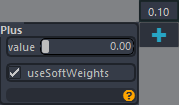
Plus adds the amount in the field above it to the selected components' active weight-map values. Use it to increase the deformer or target's contribution in a region.
Select the components, set the amount, and click the button. An amount of 0.100 requests an addition of 0.100, rather than multiplying the existing values by 10%.
| Option | Effect | Default |
|---|---|---|
| value | Live amount to add. Starts from the shared Plus/Minus amount field. | 0.100 |
| useSoftWeights | Scales the added amount by soft-selection falloff. | On |
Use the mouse wheel over the button to adjust and apply the live value dynamically.
Minus — remove weights
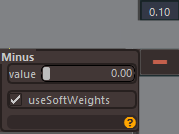
Minus subtracts the shared Plus/Minus amount from the selected components' active weight-map values. Use it to reduce the deformation's contribution in a region.
Select the components, enter a positive amount, and click the button. The tool applies that amount as a reduction.
| Option | Effect | Default |
|---|---|---|
| value | Live amount to subtract. Starts from the shared Plus/Minus amount field. | 0.100 |
| useSoftWeights | Scales the removed amount by soft-selection falloff. | On |
Use the mouse wheel over the button to adjust and apply the live value dynamically.
Modulo — adjust weight contrast
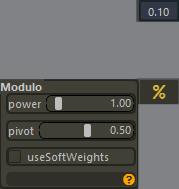
Modulo remaps the selected weight-map values around a pivot using a power control. Use it to reshape the contrast of an existing transition after establishing or smoothing the map.
Select the components, hover over the percent button, and adjust the live controls while inspecting the weight display. Higher power values increase contrast around pivot. The mouse wheel over the button adjusts power dynamically.
| Option | Effect | Default |
|---|---|---|
| power | Controls the remapping contrast around the pivot. Higher values increase contrast. | 1.0 |
| pivot | Sets the reference weight around which values are remapped. | 0.5 |
| useSoftWeights | Scales the remapping effect by soft-selection falloff. | Off |
power ranges from 0.1 to 10.0; pivot ranges from 0.0 to 1.0. Both controls are in the options panel.
Smooth — blue feather
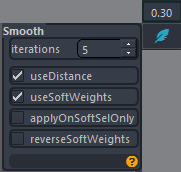
Smooth — blue feather smooths weight-map values across the selected components. Use it to soften abrupt or uneven transitions.
Select the components, set the strength above the two feather buttons, and click the blue feather. The default strength is 0.300. Increase the strength or iteration count for a stronger smoothing result.
| Option | Effect | Default |
|---|---|---|
| iterations | Number of smoothing passes. | 5 |
| useDistance | Intended to weight smoothing by vertex distance; see the current limitation below. | On |
| useSoftWeights | Scales smoothing strength by soft-selection falloff. | On |
| applyOnSoftSelOnly | Restricts smoothing to the soft-selected portion of the selection. | Off |
| reverseSoftWeights | Reverses soft-selection falloff when enabled. | Off |
Current limitation: The useDistance checkbox is displayed, but its setting is not currently applied to the smoothing command. Toggling it does not enable distance weighting.
By default, the blue feather smooths the selected components normally. Enable applyOnSoftSelOnly to limit the operation to the soft-selected portion. Enable reverseSoftWeights when you want vertices with a soft-selection weight of 1.0 to receive no smoothing and lower soft weights to receive progressively more.
Smooth — red feather
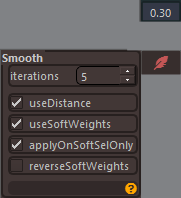
Smooth — red feather runs the same smoothing operation with applyOnSoftSelOnly enabled by default. Use it when you want smoothing restricted to the soft-selected portion of the selection.
Set up soft selection around the region you want to refine, then click the red feather. reverseSoftWeights is a separate option and is off by default; enable it when you want to invert the falloff effect.
| Option | Effect | Default |
|---|---|---|
| iterations | Number of smoothing passes. | 5 |
| useDistance | Intended to weight smoothing by vertex distance; has the same current limitation as the blue feather. | On |
| useSoftWeights | Applies soft-selection falloff to the smoothing strength. | On |
| applyOnSoftSelOnly | Restricts smoothing to the soft-selected portion of the selection. | On |
| reverseSoftWeights | Reverses soft-selection falloff when enabled. | Off |
Both feather buttons share the strength field above the blue feather. Disable applyOnSoftSelOnly to give the red feather the same selection coverage as the blue feather. When reverseSoftWeights is enabled, vertices with a soft-selection weight of 1.0 receive no smoothing, while lower soft weights receive progressively more.
Copy — store an average map value
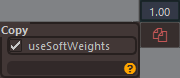
Copy stores the average active weight-map value from the selected components for use with Paste.
Select one component to copy its value, or several to copy their average, then click the button. Copy stores a single average value rather than a separate value for every component. The strength field above Copy controls Paste and Equalize; it does not set the copied value.
| Option | Effect | Default |
|---|---|---|
| useSoftWeights | Enables soft-weight handling when calculating the stored average. | On |
Paste — apply the stored value
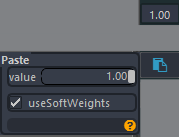
Paste applies the value stored by Copy to the selected components of the active map. Copy a source selection first, then select the destination components and click the button.
The field above Copy sets the paste strength. At 1.000, Paste applies the full stored value; lower strengths blend toward it. Soft-selection falloff can reduce the effect on individual components.
| Option | Effect | Default |
|---|---|---|
| value | Live paste strength. Starts from the shared Paste/Equalize strength field. | 1.000 |
| useSoftWeights | Scales paste strength by soft-selection falloff. | On |
Use the mouse wheel over the button to adjust and apply the live strength dynamically.
Equalize — apply the selection's own average
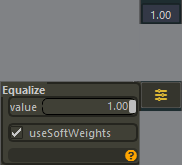
Equalize calculates the average active map value from the current selection and applies it back to that selection. Use it to make a patch share a common value or move its values closer together.
Select the components, set the strength above Copy, and click the button. No preceding Copy operation is needed. For example, values of 0.200 and 0.800 average to 0.500; at full strength without falloff, both components receive that average.
| Option | Effect | Default |
|---|---|---|
| value | Live strength for applying the selection's average. Starts from the shared Paste/Equalize strength field. | 1.000 |
| useSoftWeights | Enables soft-weight handling for the average operation and scales its application by falloff. | On |
Lower strengths move the values partway toward the average. Use the mouse wheel over the button to adjust and apply the live strength dynamically.