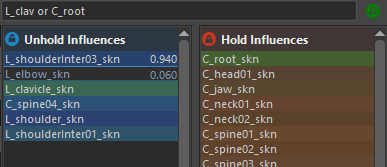
The Skinning tab lists the influences of the active skin cluster and shows their average weights for the current component selection. Use these lists to choose the influences you want to edit, protect weights with hold controls, and find the vertices affected by a joint.
Active skin cluster
Select a skinned mesh or its components in Maya. The Skin : dropdown at the top of the tab identifies the skin cluster used by the influence lists and weight-editing tools.
If the geometry has multiple skin clusters, choose the one you want to work on from this dropdown. The lists and weight values update for that skin cluster. mcSkinningBee remembers your choice for each geometry while the tool is open.
Unheld and held influences
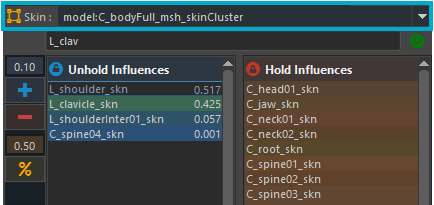
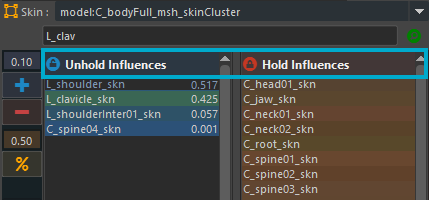
The influences are divided into two lists:
- Unhold Influences, on the left, contains unlocked influences whose weights are available for editing.
- Hold Influences, on the right, contains locked influences whose weights should be preserved by operations that respect locks.
Each row shows an influence name and, when available, its average weight on the selected components. Drag the divider between the lists to adjust their widths.
To hold an influence, select its row in Unhold Influences, right-click inside that list, and choose Hold selection. The influence moves to Hold Influences. To unlock it again, select it in the held list and choose Unhold selection.
Holding an influence changes its skin-weight lock state; it does not remove the influence or clear its weights. For tools with a Respect Locks or Respect Lock option, check that option when you need held weights to stay unchanged.
Selecting influences
Click a row to make that influence active for tools that require an influence selection. Use Ctrl-click to add or remove individual rows and Shift-click to select a range. Hold Ctrl when selecting in the other list to keep selections in both lists.
Selecting influence rows highlights the corresponding joints in Maya and updates the active influences used by skin-weight visualization. Your component selection remains the target for weight editing. To select the actual influence nodes in Maya instead, use Select Influence(s) Nodes from the right-click menu.
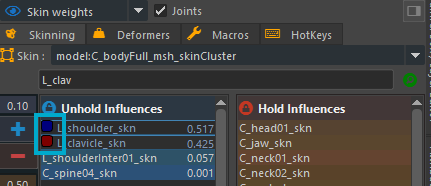
When skin-weight visualization is enabled and multiple influences are selected, color buttons appear beside their names. These colors correspond to the viewport display. Click a color button to change that influence's display color.
Searching influences
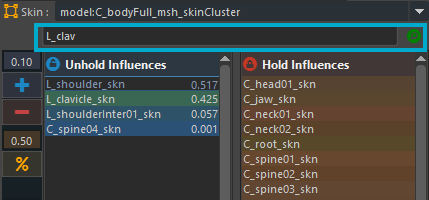
The search field above the lists helps locate influences by name. Type a name fragment, then press Enter or click the magnifying-glass button to apply the search to both lists. The icon turns green while the search is active.
Matching rows receive a green background. Other influences remain visible, so you can still inspect and select them. Matching is case-sensitive and uses literal text fragments.
Combine fragments with lowercase and or or, including the spaces:
| Search example | Matches |
|---|---|
arm |
Names containing arm. |
arm and L_ |
Names containing both arm and L_. |
arm or hand |
Names containing either arm or hand. |
arm and L_ or hand and L_ |
Names containing arm and L_, or hand and L_. |
Editing the search text deactivates the current search. Press Enter again to apply the new text. Click the green magnifying-glass button to deactivate the search without clearing the field.
Influence actions
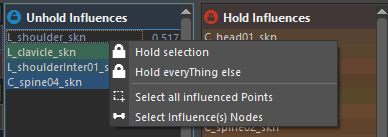
Select the influence rows first, then right-click inside their list. The menu acts on the selected rows in that list.
| Action | Available in | Result |
|---|---|---|
| Hold selection | Unhold Influences | Locks the selected influences and moves them to the held list. |
| Hold everyThing else | Unhold Influences | Locks all other influences in the unheld list, leaving the selected rows unlocked. |
| Unhold selection | Hold Influences | Unlocks the selected influences and moves them to the unheld list. |
| Unhold everyThing else | Hold Influences | Unlocks all other influences in the held list, leaving the selected rows locked. |
| Select all influenced Points | Both lists | Replaces the Maya component selection with vertices affected by any selected influence on the current geometry. |
| Select Influence(s) Nodes | Both lists | Selects the corresponding influence nodes in Maya. |
The everyThing else actions include all unselected rows in the list where you opened the menu, regardless of the search highlighting. For example, select two unheld influences and choose Hold everyThing else to leave only those two unlocked.
Select all influenced Points searches the whole current mesh, rather than only the current vertex selection. A vertex is included when at least one selected influence has a weight greater than 0.0001. If no vertices qualify, Maya's selection is cleared.
Average weight
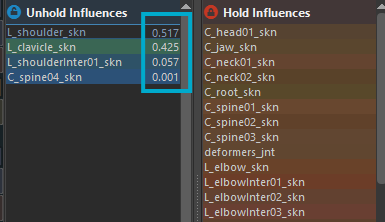
The number beside an influence is its average skin weight across the current component selection. Values are displayed to three decimal places on a scale from 0.000 to 1.000.
With one vertex selected, the value represents that vertex's weight for the influence. With several vertices selected, it summarizes their weights. For example, weights of 0.200 and 0.800 on two selected vertices produce an average of 0.500. The average does not mean that every selected vertex has that value.
The values update as the component selection or skin weights change. A blank weight cell means no weight value is available for that influence in the current selection. Very small contributing weights may round to 0.000 at the displayed precision.
Use the values to identify which influences contribute to a selected region, then inspect smaller selections or individual vertices when you need to understand a transition in detail. To change the weights, use the weight-editing tools.
Moving influences to the top
The lists automatically place influences with weight values for the current component selection above influences with blank cells. Higher displayed average weights appear first, helping you find the main contributors to the selected region.
Applying a search also gives matching influences with blank weight cells priority over other blank rows. Influences with weight values still appear above the blank rows, whether or not their names match the search. Search highlighting helps you distinguish the matches within that order.
Select a different group of vertices to update the values and ordering. This changes the presentation of the lists; it does not change skin weights or hold states.