
The Anim toolbar provides quick test animations for checking how a skinned or deformed model behaves in motion. It appears along the left side of both the Skinning and Deformers tabs.
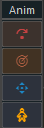
The toolbar contains four buttons, arranged from top to bottom:
- Rotation Animation
- Cone Sweep Animation
- Translation Animation
- Return to Rest Pose
Select one or more transform/joint controls before clicking an animation button. The generated tests are placed sequentially on the timeline and identified with colored time-slider bookmarks. The playback range expands to include the complete test.

The first three buttons expose their settings in an options panel. You can also place the pointer over a button and use the mouse wheel to adjust its primary value: Angle, First Angle, or Distance.
Important: These commands are intended for temporary deformation tests. They remove existing animation curves from the channels they need to control and delete all existing time-slider bookmarks before creating new ones. Do not run them on animation or bookmarks you need to preserve.
Rotation Animation
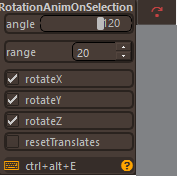
Rotation Animation creates a negative-to-positive rotation test on the selected controls. Each enabled axis is animated separately, making it easy to inspect deformation around individual rotational axes.
Its settings are:
- Angle sets the maximum negative and positive rotation. The default is 120 degrees.
- Range sets the number of frames used by each movement segment. The default is 20 frames.
- Rotate X, Rotate Y, and Rotate Z choose which axes are tested.
- Reset Translates clears animation from the translation channels and resets their available values to zero before generating the rotation test.
Locked or otherwise connected channels that cannot be edited are skipped.
Cone Sweep Animation
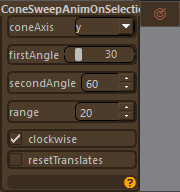
Cone Sweep Animation rotates the selected controls in a circular pattern around a chosen central axis. It is useful for testing shoulders, hips, wrists, and other joints that need to deform across a broad range of directions.
The command creates two consecutive sweeps, one for each configured angle. Each sweep starts at rest, enters the cone, completes one revolution, and returns to rest.
Its settings are:
- Cone Axis selects X, Y, or Z as the central axis. The other two rotation axes create the circular motion.
- First Angle sets the radius of the first sweep. The default is 30 degrees.
- Second Angle sets the radius of the second sweep. The default is 60 degrees.
- Range defines the number of frames per quarter revolution. The default is 20 frames.
- Clockwise reverses the direction of the sweep when enabled.
- Reset Translates clears translation animation and resets available translation channels before creating the test.
Translation Animation
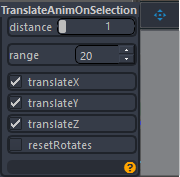
Translation Animation creates a negative-to-positive translation test on the selected controls. Each enabled axis is animated separately so you can inspect how the model responds to movement along X, Y, and Z.
Its settings are:
- Distance sets the maximum negative and positive translation. The default is 1.0 scene unit.
- Range sets the number of frames used by each movement segment. The default is 20 frames.
- Translate X, Translate Y, and Translate Z choose which axes are tested.
- Reset Rotates clears animation from the rotation channels and resets their available values to zero before generating the translation test.
Locked or otherwise connected channels that cannot be edited are skipped.
Return to Rest Pose
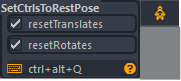
Return to Rest Pose cleans up the controls used by the animation tools. It removes animation from the selected channel groups, deletes the time-slider bookmarks, and resets available channel values to zero.
Its settings are:
- Reset Translates removes translation animation and resets available translation channels.
- Reset Rotates removes rotation animation and resets available rotation channels.
Both options are enabled by default. The command acts on the controls used by the preceding test and any currently selected transform controls.